Export to Figma
Turn any live website into editable Figma layers—one click, no screenshots.
NewName Editorial
Editorial Team
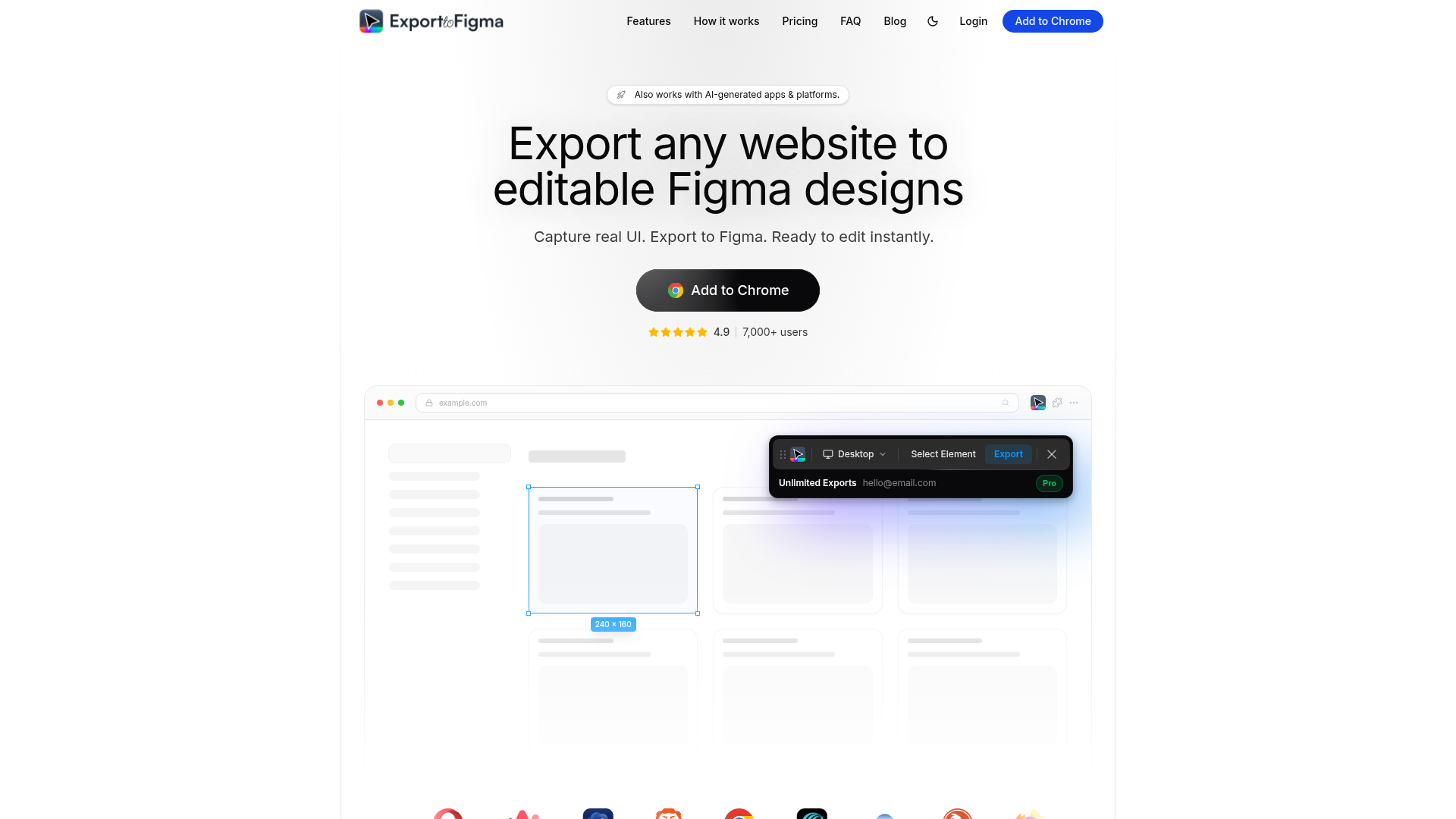

Designers have long suffered a peculiar form of archaeology: reconstructing a website's layout from a flat screenshot, tracing fonts, guessing spacing, and rebuilding layers by hand. Export to Figma, a Chrome extension, proposes to end that ritual. It captures any live webpage and pastes it into Figma as a fully editable design file—layers, styles, and structure intact. The pitch is simple, but the implications ripple through modern product workflows, especially now that AI tools generate entire websites at a pace that makes manual recreation absurd.
The extension's timing is sharp. As AI coding assistants like Claude Code, Lovable, and Bolt churn out landing pages and web apps, designers are increasingly handed code they didn't write and asked to make sense of it. Export to Figma positions itself as the bridge between that generated UI and the design tools where decisions are actually made.
The Screenshot Is Dead: Why Designers Need Live UI
For years, the standard way to bring a website into Figma was to take a screenshot and import it as an image. That works for reference, but it's useless for editing. Every element is frozen in pixels; changing a button's color means redrawing it from scratch. Export to Figma's core promise is that it captures the underlying structure—the DOM, the CSS, the computed styles—and translates them into Figma's native objects. That means text remains text, shapes remain vectors, and colors remain swatches.
The site's feature list emphasizes this fidelity: "Style Preservation," "Typography Match," "Image Extraction," and "Responsive Layouts." These aren't just marketing bullets; they address the specific pain points of anyone who has tried to rebuild a webpage by eye. The extension aims to preserve not just the visual appearance but the design tokens—the fonts, colors, and spacing that define a design system.
This is a meaningful shift. Instead of treating a website as a static image, Export to Figma treats it as a living document, ready to be pulled apart and reassembled. For redesign projects, it means starting from the actual current state, not an approximation.
From Browser to Figma: The Three-Step Pipeline
The workflow is refreshingly direct. Install the extension from the Chrome Web Store, pin it to the toolbar, and open any website. Click the Export button—either for the whole page or a specific element—and then switch to Figma and paste. The design lands with layers, styles, and structure intact.
The site breaks it down into three steps: Install & Pin, Export the Page, and Paste on Figma. There's no upload, no intermediate file, no export/import dance. The clipboard is the transport mechanism. This simplicity is a deliberate choice, and it lowers the barrier to entry considerably. You don't need to learn a new tool; you just add a button to your browser.
This pipeline also hints at the underlying technical challenge. Capturing a live webpage and converting it into editable layers requires parsing the DOM, computing styles, and mapping them to Figma's object model. The fact that the extension can do this in seconds, as the site claims, is a non-trivial engineering feat.
Layer Fidelity: What Survives the Trip
The real test of any website-to-Figma tool is what happens to the layers. A flat image is useless; a jumble of unnamed rectangles is barely better. Export to Figma promises "proper layer hierarchy and naming," which is the difference between a design file you can actually work with and one you'd rather delete.
The site highlights several fidelity dimensions: colors, fonts, shadows, effects, and responsive constraints. It also claims to extract images at original quality, which is often a stumbling block for such tools. If the extension delivers on these promises, it could genuinely replace the manual rebuild workflow.
However, the FAQ hints at limitations. It asks, "What doesn't get captured?" and "Are fonts and images always preserved correctly?"—suggesting that not everything survives the trip. Complex animations, custom fonts that aren't loaded, or intricate CSS effects might not translate perfectly. The site doesn't go into detail, but the honest acknowledgment of limits is a good sign.
The AI Website Goldmine
One of the most distinctive aspects of Export to Figma is its explicit targeting of AI-generated websites. The site lists Claude Code, Lovable, Bolt, v0, and Replit as compatible sources. This is a smart bet. As more teams use AI to spin up prototypes and even production pages, the need to bring those designs into Figma for iteration becomes critical.
AI-generated code is often messy, and the visual result may not match the intent. Designers need to step in, adjust, and refine. Export to Figma offers a way to pull that generated UI into a familiar environment, where they can apply their skills without fighting the code.
This positioning also differentiates the extension from older tools that focused on static HTML sites. The web is increasingly dynamic, and the ability to capture a live, AI-built page is a forward-looking feature.
Pricing and Distribution: A Chrome Extension's Economics
Export to Figma follows the classic freemium model. The free plan includes 10 exports per month, which is enough to test the waters. The Pro plan costs $1 per month—an introductory launch price—and offers unlimited exports. This is a low-cost entry point, designed to encourage adoption and build a user base.
The site's messaging is honest: "The free plan is enough to get started, but if this saves you time, the Pro plan helps keep it alive." It's a community-supported tool, and the pricing reflects that ethos.
Distribution is through the Chrome Web Store, which is a double-edged sword. On one hand, it provides easy access and trust. On the other, it means relying on Chrome's ecosystem, and the extension's reach is limited to Chrome-based browsers. The site lists compatibility with Brave, Edge, Opera, and others, but Firefox support is unclear.
What Export to Figma Doesn't Capture
The site's FAQ is refreshingly candid about limitations. It asks, "What doesn't get captured?" and "Does it work on all websites?"—implying that some things are left behind. Complex interactive elements, videos, or dynamically loaded content might not translate perfectly. Fonts and images may not always be preserved correctly, depending on licensing or loading.
For a tool that promises fidelity, these caveats matter. A designer capturing a marketing site with custom web fonts might find that the export uses fallback fonts. A page with heavy JavaScript might render differently. The extension is a powerful shortcut, but it's not a magic wand.
Naming: The Clarity of a Verb Phrase
The name "Export to Figma" is utilitarian to a fault. It describes exactly what the tool does, with no metaphor or abstraction. This is a deliberate choice. In a crowded market of tools with clever names, Export to Figma opts for clarity. The domain, exporttofigma.com, reinforces the message.
This naming strategy has both strengths and weaknesses. It's immediately understandable, which helps with SEO and word-of-mouth. But it's also generic; there's no brand personality. The name could be mistaken for a built-in Figma feature rather than a third-party tool. Still, for a utility that lives in the browser toolbar, clarity might be more valuable than cleverness.
The name also signals a narrow focus. It doesn't try to be a general-purpose design tool; it's a bridge between the web and Figma. That focus is a strength, as it allows the product to do one thing well.
Export to Figma is a timely tool for a moment when the web is being generated at unprecedented speed. It doesn't reinvent design; it removes a tedious step. For designers, developers, and product teams who live in Figma, that might be enough.